
Configuration (macOS)
Configure ProxyBridge on macOS to route application traffic through InterceptSuite.
Configuration: macOS
Open ProxyBridge from Applications or Launchpad. The app runs in the menu bar: all configuration is accessed through the menu bar icon.
The Network Extension must be enabled in System Settings before ProxyBridge can intercept traffic. See the macOS installation guide if you haven't completed that step yet.

Proxy Settings
Open Proxy → Proxy Settings from the menu bar.
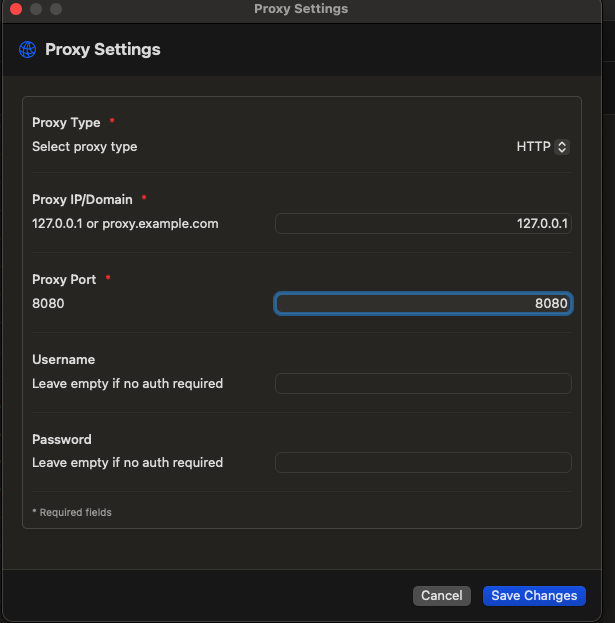
- Select Proxy Type:
HTTPorSOCKS5 - Enter Proxy Host: IP address of the proxy server (e.g.
127.0.0.1,192.168.1.100) - Enter Proxy Port (e.g.
4444for InterceptSuite,1080for SOCKS5,8080for HTTP) - (Optional) Enter Username and Password for authenticated proxies: HTTP Basic Auth and SOCKS5 authentication are both supported. Leave blank for local InterceptSuite use.
- Click Save Changes
Proxy Rules
Open Proxy → Proxy Rules from the menu bar.
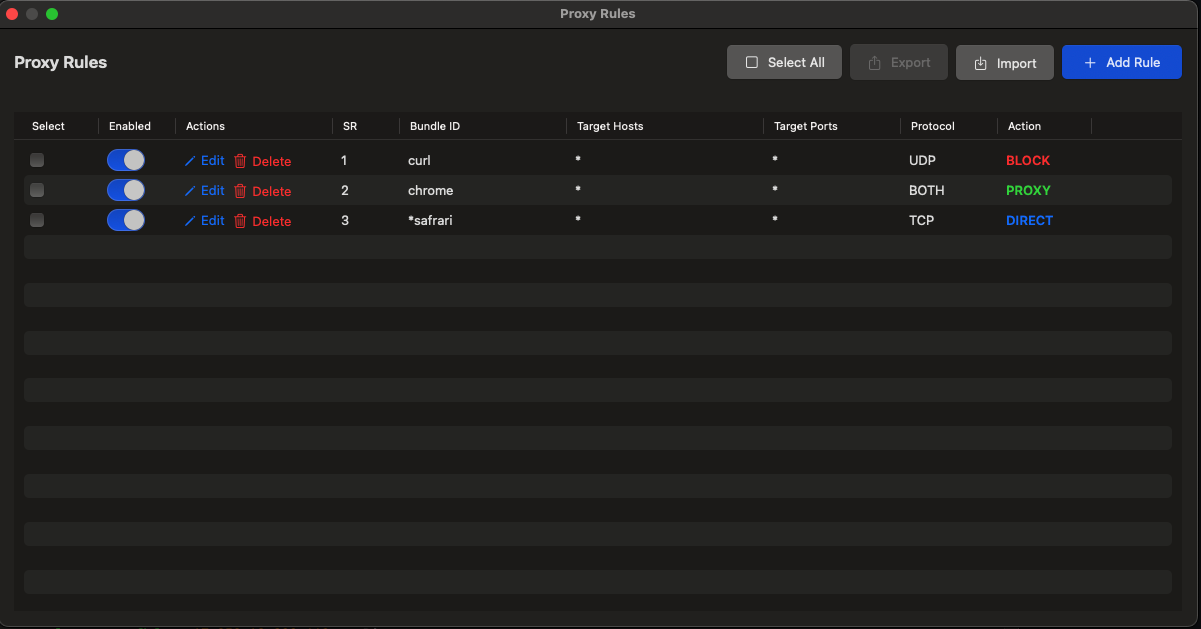
Rules determine how network traffic is handled. They are evaluated top-down: the first matching rule wins.
Rule fields
| Field | Description |
|---|---|
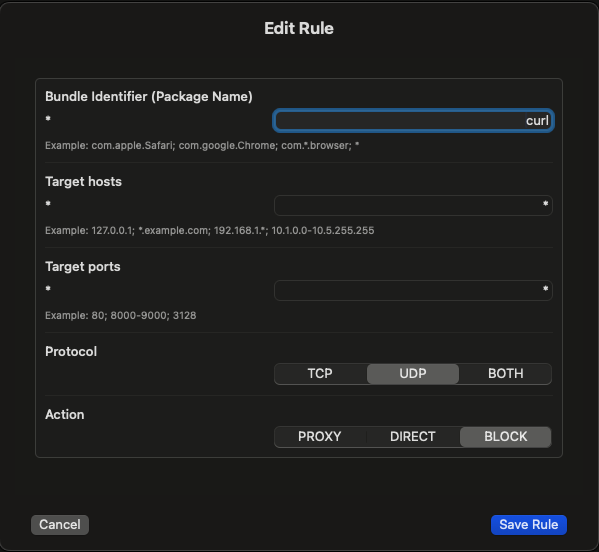
| Package Name | Bundle identifier or process name. Supports wildcards: com.google.*, ch*, *chrome. Use * for all applications. Multiple entries semicolon-separated: com.google.Chrome; com.mozilla.firefox. |
| IP / Hostname | Destination IP or hostname. TCP only: not available for UDP. Supports specific IPs (192.168.1.1), wildcard ranges (192.168.*.*), ranges (10.0.1.1-10.0.255.255), and multiple entries (127.0.0.1; 10.0.0.1). Leave empty or use * for all. |
| Port | Destination port(s). TCP only: not available for UDP. Supports specific ports (80; 443), ranges (80-8080), or * for all. Leave empty for all. |
| Protocol | TCP, UDP, or Both |
| Action | PROXY: route through proxy · DIRECT: allow direct connection · BLOCK: block the connection |
Rules can match on either the application bundle identifier (
com.google.Chrome) or the process name (chrome). Both support wildcards: e.g.com.google.*matches all Google apps,ch*matches any process starting withch.
For UDP rules, IP and port matching is not available: only the package name is matched. This is an Apple API limitation.
Rule examples
Route a browser through the proxy
Package Name: com.google.Chrome
IP/Hostname:  (empty)
Port:         (empty)
Protocol:     TCP
Action:       PROXY
Allow a specific destination to bypass the proxy
Package Name: (empty)
IP/Hostname:  192.168.1.1
Port:         443
Protocol:     TCP
Action:       DIRECT
Block an application from all network access
Package Name: com.example.app
IP/Hostname:  (empty)
Port:         (empty)
Protocol:     Both
Action:       BLOCK
Route UDP traffic from a specific app through SOCKS5
Package Name: com.example.voipapp
IP/Hostname:  (ignored for UDP)
Port:         (ignored for UDP)
Protocol:     UDP
Action:       PROXY
Exporting and Importing Rules
Rules can be exported to a JSON file and imported on another machine. The format is compatible across macOS, Windows, and Linux.
Export
- Tick the checkboxes next to the rules you want to export (or click Select All)
- Click Export: only active when at least one rule is selected
- Choose a save location: the file is saved as JSON
Import
- Click Import
- Select a previously exported JSON file
- Rules are added to your existing rule list
JSON format
[
  {
    "processNames": "com.google.Chrome",
    "targetHosts": "*",
    "targetPorts": "*",
    "protocol": "TCP",
    "action": "PROXY",
    "enabled": true
  }
]
Activity Monitoring
Connection logs are visible in the main window. Each entry shows:
- Protocol (TCP / UDP)
- Application bundle identifier
- Destination IP / hostname
- Destination port
- Action taken (
PROXY/DIRECT/BLOCK)
UDP connections that don't match any rule are passed directly to the OS and logged with unknown IP and port: this is normal behaviour caused by the Apple Network Extension API not exposing UDP destination details for unhandled flows.
Things to Note
macOS uses bundle identifiers or process names
Unlike Windows, macOS rules match on either the application bundle ID or the process name. Bundle identifiers are more precise. To find an app's bundle ID, run:
osascript -e 'id of app "Google Chrome"'
# → com.google.Chrome
Or check the app bundle directly:
cat /Applications/Google\ Chrome.app/Contents/Info.plist | grep -A1 CFBundleIdentifier
UDP proxy requirements
HTTP proxy + UDP = direct connection
HTTP proxy servers do not support UDP. If your configured proxy type is HTTP and you add a rule with Action PROXY and Protocol UDP or BOTH, those UDP packets will go direct instead. BLOCK and DIRECT UDP rules work regardless of proxy type.
SOCKS5 is required for UDP proxying, but is not sufficient on its own
Switching to a SOCKS5 proxy enables UDP forwarding, but whether UDP traffic actually reaches the destination depends entirely on whether the SOCKS5 proxy server supports the UDP ASSOCIATE command. Most SOCKS5 proxy servers (including SSH dynamic port forwarding (ssh -D): do not implement UDP ASSOCIATE. If ProxyBridge forwards a UDP packet to a proxy that doesn't support it, the proxy will drop the packet. You may see slow connectivity, packet loss, or broken applications.
Only add UDP PROXY rules if you have confirmed your SOCKS5 proxy server supports UDP ASSOCIATE.
QUIC and HTTP/3
Even with a SOCKS5 proxy that supports UDP ASSOCIATE, modern applications and websites may not work correctly over UDP proxy. Most major CDNs (Cloudflare, Fastly, Google, etc.) now serve traffic over HTTP/3, which runs over QUIC: a UDP-based protocol. Routing QUIC traffic through a SOCKS5 proxy requires the proxy to support HTTP/3 and QUIC specifically, not just raw UDP. A proxy that advertises UDP ASSOCIATE does not automatically gain HTTP/3 or QUIC support.
Testing UDP and HTTP/3 support
If you want to test ProxyBridge's UDP proxying including HTTP/3 and QUIC, Nexus Proxy is a SOCKS5 proxy server built by InterceptSuite specifically for this purpose. It supports UDP ASSOCIATE along with HTTP/3 and QUIC handling. It is not a full production-ready proxy server, but it is useful for validating that UDP rules and HTTP/3 traffic flow correctly through ProxyBridge.
System processes
Some macOS system processes may bypass the Network Extension. Critical macOS services are not intercepted to maintain system stability: this is an OS-level restriction.
How It Works
ProxyBridge uses the macOS Network Extension framework (NETransparentProxyProvider) to intercept all TCP and UDP traffic system-wide.
- Any application on the system makes a network request
- The ProxyBridge system extension receives the connection via
NETransparentProxyProvider - The extension evaluates the connection against your rules: matching on bundle ID, destination IP/hostname (TCP only), port (TCP only), and protocol
- Based on the matching rule:
- BLOCK → connection is dropped
- DIRECT → connection passes through unchanged
- PROXY → the extension opens a new
NWTCPConnection(TCP) orNWUDPSession(UDP) to the configured proxy, performs the SOCKS5 or HTTP CONNECT handshake, and relays data between the application and the proxy - No match → connection passes to the OS directly (acts as DIRECT)
- All connection attempts are logged and sent to the GUI
Applications are completely unaware of interception: they see normal socket behaviour.