
Configuration (Linux)
Configure ProxyBridge on Linux to route application traffic through InterceptSuite.
Configuration: Linux
ProxyBridge on Linux requires root privileges. Use the GUI or CLI depending on your environment:
sudo ProxyBridgeGUI      # graphical interface (requires GTK3)
sudo ProxyBridge --help  # command-line interface
Proxy Settings
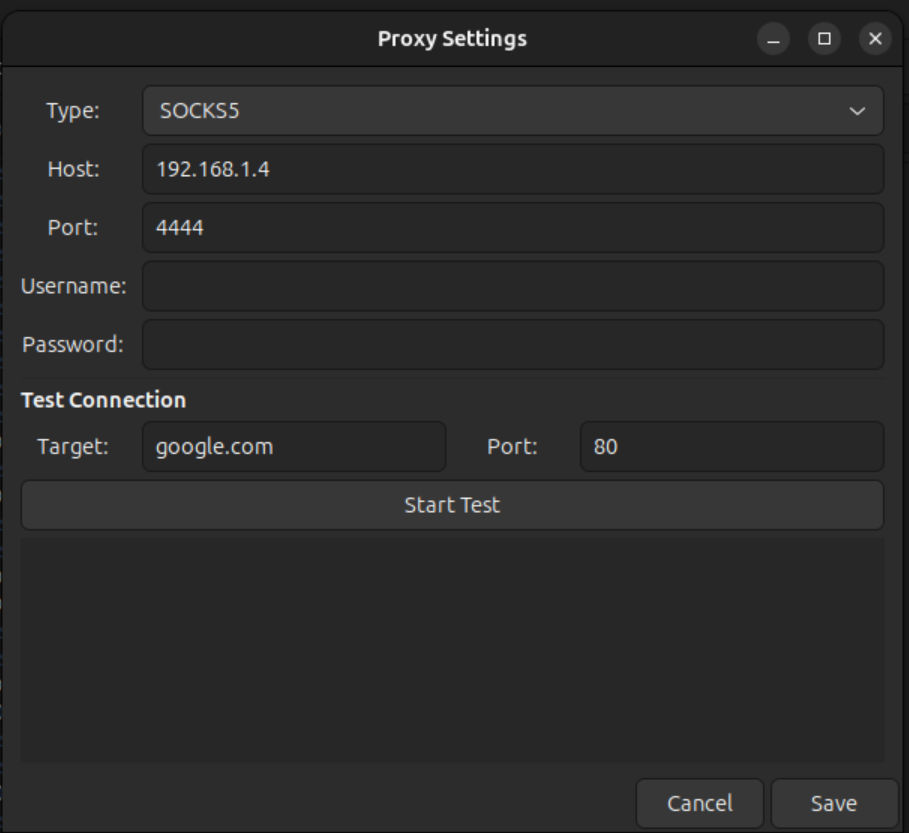
Open the Proxy Settings dialog and configure the upstream proxy ProxyBridge will forward traffic to.
- Click Proxy in the menu bar
- Click Proxy Settings
- Configure the fields:
| Field | Description |
|---|---|
| Proxy Type | SOCKS5 or HTTP |
| Proxy Host | IP address of the proxy server (e.g. 127.0.0.1). Hostnames are not supported: use an IP address. |
| Proxy Port | Port the proxy server listens on (e.g. 4444 for InterceptSuite) |
| Proxy Username | Optional. Username for authenticated proxies. Leave blank for unauthenticated local proxies. |
| Proxy Password | Optional. Password for authenticated proxies. |
- Click Save Changes
Authentication note: HTTP proxy uses Basic authentication. SOCKS5 proxy uses username/password authentication as defined in RFC 1929.
Test the proxy connection
After saving, click Test Connection to verify ProxyBridge can reach the proxy server. A successful test confirms the host, port, and credentials are correct.
For interception with InterceptSuite, set Proxy Type to
SOCKS5, Host to127.0.0.1, and Port to4444.
Proxy Rules
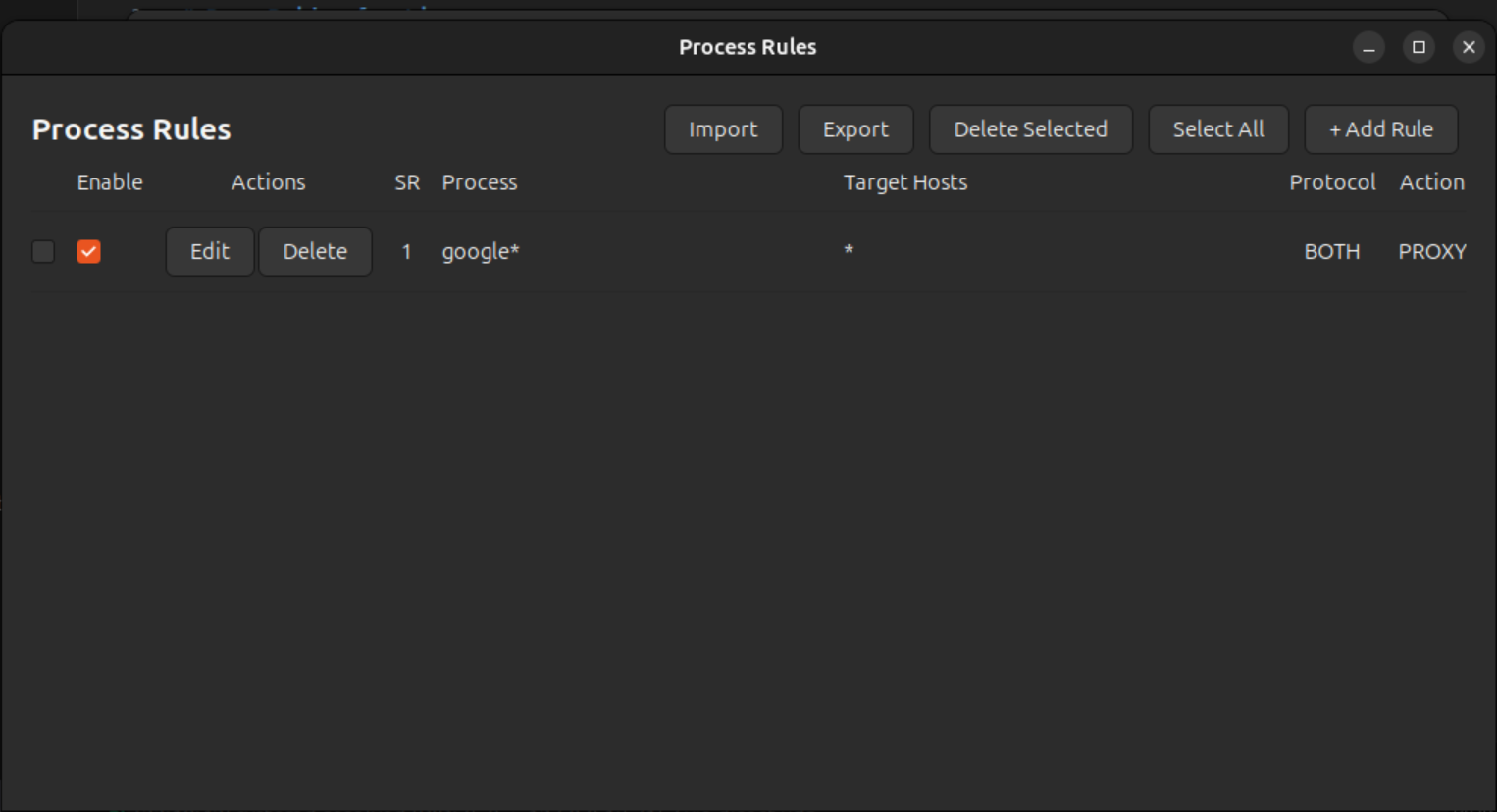
Rules define which applications and connections are proxied, allowed direct, or blocked. ProxyBridge evaluates rules top-down: the first matching rule wins.
- Click Proxy → Proxy Rules
- Click Add Rule
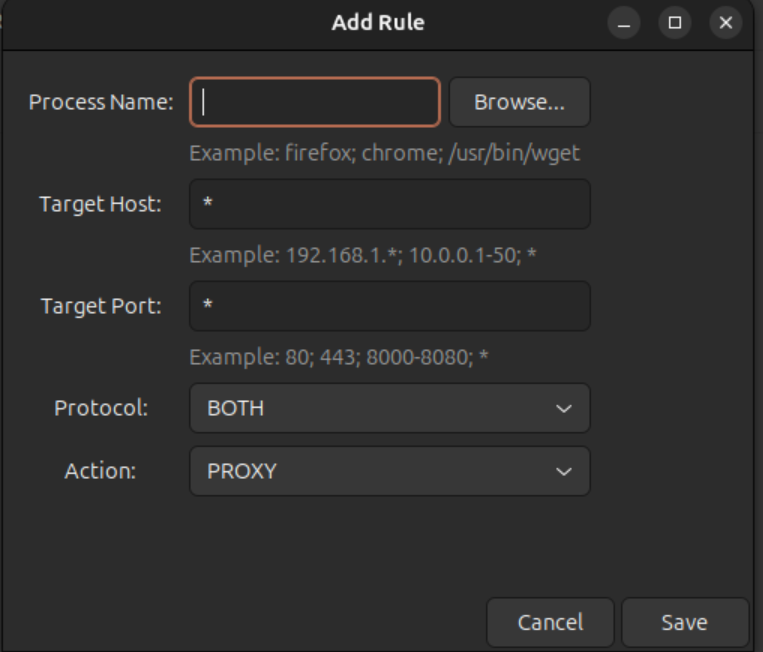
- Configure the rule fields:
| Field | Description |
|---|---|
| Applications | Process name(s) to match. Use * for all, an exact name (curl), a wildcard (fire*), or multiple names separated by ; (e.g. curl;wget;firefox). Process names are case-sensitive on Linux. |
| Target Hosts | Destination IP or hostname. Use * for all, a specific IP (192.168.1.1), a wildcard range (192.168.*.*), multiple entries separated by ; or ,, or an IP range (10.0.1.1-10.0.255.255). |
| Target Ports | Destination port(s). Use * for all, specific ports separated by ; (e.g. 80;443), or a range (80-8080). Combinations work too: 80;443;8000-9000. |
| Protocol | TCP, UDP, or Both |
| Action | PROXY: send through the configured proxy · DIRECT: allow direct connection · BLOCK: drop the connection |
- Click Save Rule
Place specific rules above broad ones. A catch-all rule (
*:*:*:BOTH:PROXY) at the bottom routes everything not matched by earlier rules through the proxy.
Export and Import rules
Rules can be exported to JSON and imported back. The format is cross-platform: rules exported on Linux can be imported on Windows or macOS.
- To export: click File → Export Rules and choose a save location
- To import: click File → Import Rules and select a JSON file
JSON format:
[
  {
    "applications": "curl;wget",
    "targetHosts": "*",
    "targetPorts": "*",
    "protocol": "TCP",
    "action": "PROXY"
  },
  {
    "applications": "*",
    "targetHosts": "*",
    "targetPorts": "*",
    "protocol": "BOTH",
    "action": "DIRECT"
  }
]
Activity Monitoring
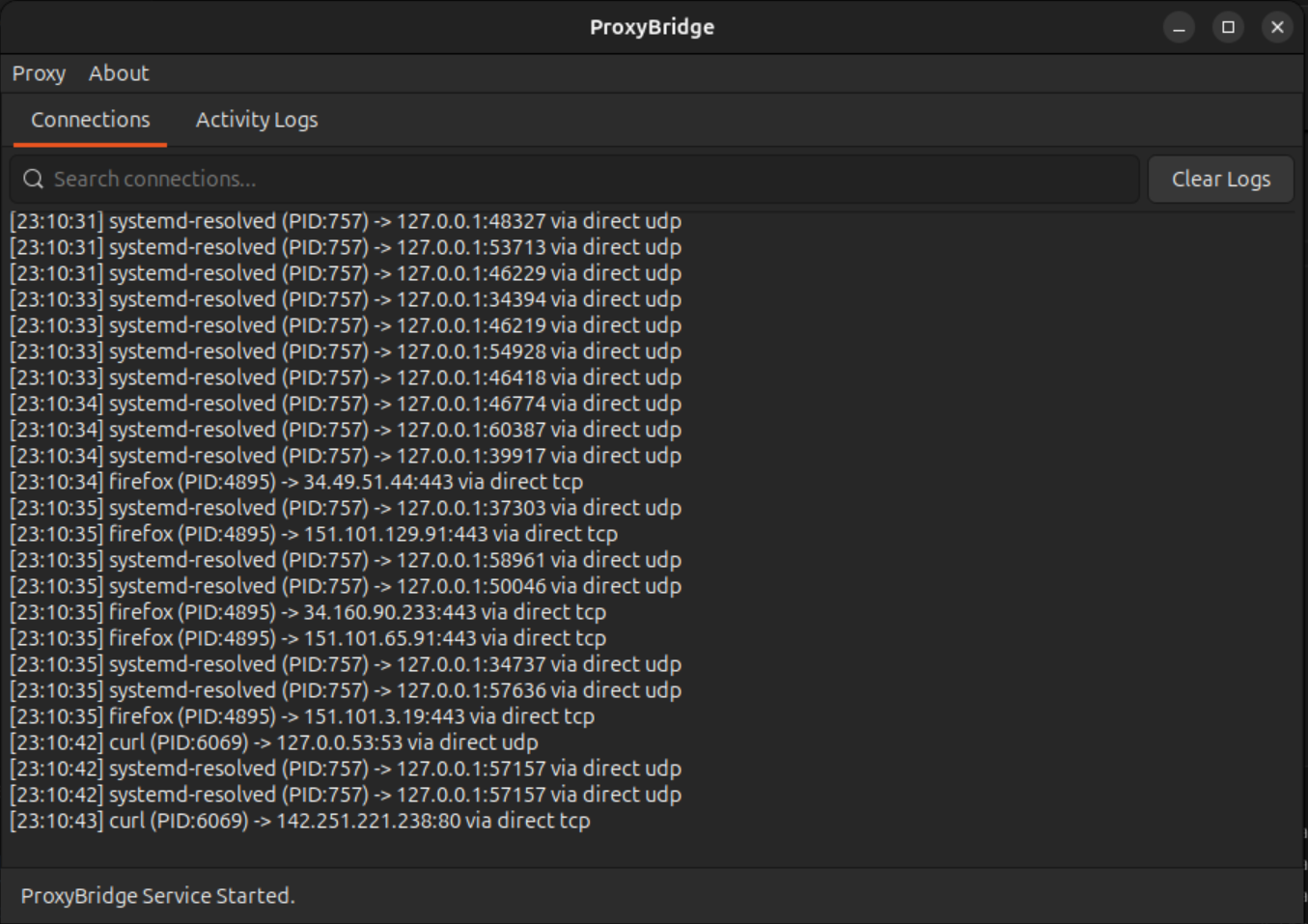
The main window shows live connections. Each entry displays the process name, source port, destination IP and port, protocol, and rule action applied. This is useful for verifying rules are matching the expected traffic.
Command Line Interface (CLI)
The CLI is intended for scripting, automation, and headless environments where no GUI is available. All rule logic is identical to the GUI.
Basic usage
# Route curl through a SOCKS5 proxy
sudo ProxyBridge --proxy socks5://127.0.0.1:1080 --rule "curl:*:*:TCP:PROXY"

# Route multiple processes with one rule (semicolon-separated)
sudo ProxyBridge --proxy http://127.0.0.1:8080 --rule "curl;wget;firefox:*:*:TCP:PROXY"

# Multiple rules with connection logging
sudo ProxyBridge --proxy http://127.0.0.1:8080 \
    --rule "curl:*:*:TCP:PROXY" \
    --rule "wget:*:*:TCP:PROXY" \
    --verbose 2

# Block an application entirely
sudo ProxyBridge --rule "malware:*:*:BOTH:BLOCK"

# Route all through proxy except the proxy app itself
sudo ProxyBridge --proxy socks5://127.0.0.1:1080 \
    --rule "burpsuite:*:*:TCP:DIRECT" \
    --rule "*:*:*:TCP:PROXY"

# Target specific IPs and ports
sudo ProxyBridge --proxy socks5://127.0.0.1:1080 \
    --rule "curl:192.168.*.*;10.10.*.*:80;443;8080:TCP:PROXY"

# IP range matching
sudo ProxyBridge --proxy socks5://192.168.1.4:4444 \
    --rule "curl:3.19.110.0-3.19.115.255:*:TCP:PROXY"

# Cleanup iptables rules left by a crashed instance
sudo ProxyBridge --cleanup
Command line options
USAGE:
  ProxyBridge [OPTIONS]

OPTIONS:
  --proxy <url>          Proxy server URL with optional authentication
                         Format: type://ip:port or type://ip:port:username:password
                         Examples: socks5://127.0.0.1:1080
                                   http://proxy.com:8080:myuser:mypass
                         Default: socks5://127.0.0.1:4444

  --rule <rule>          Traffic routing rule (can be specified multiple times)
                         Format: process:hosts:ports:protocol:action
                           process  - Process name(s): curl, cur*, *, or multiple separated by ;
                           hosts    - IP/host(s): *, google.com, 192.168.*.*, or multiple separated by ; or ,
                           ports    - Port(s): *, 443, 80;8080, 80-100, or multiple separated by ; or ,
                           protocol - TCP, UDP, or BOTH
                           action   - PROXY, DIRECT, or BLOCK

  --dns-via-proxy <bool> Route DNS queries through proxy
                         Values: true, false, 1, 0
                         Default: true

  --verbose <level>      Logging verbosity level
                           0 - No logs (default)
                           1 - Show log messages only
                           2 - Show connection events only
                           3 - Show both logs and connections

  --cleanup              Cleanup resources (iptables rules) from a crashed instance

  --help, -h             Show this help message
ProxyBridge requires root privileges to create NFQUEUE handles and manage iptables rules. Always run with
sudoor as root.
Rule format reference
Format: process:hosts:ports:protocol:action
| Field | Values |
|---|---|
| process | curl, curl;wget;firefox, fire*, * |
| hosts | *, 192.168.1.1, 192.168.*.*, 10.0.1.1-10.0.255.255, 192.168.1.1;10.10.10.10 |
| ports | *, 443, 80;443;8080, 80-8000, 80;443;8000-9000 |
| protocol | TCP, UDP, BOTH |
| action | PROXY, DIRECT, BLOCK |
Examples:
# Single process
--rule "curl:*:*:TCP:PROXY"

# Multiple processes in one rule
--rule "curl;wget;firefox:*:*:TCP:PROXY"

# Wildcard process name: matches firefox, firebird, etc.
--rule "fire*:*:*:TCP:PROXY"

# Specific IPs and ports
--rule "curl:192.168.*;10.10.*.*:80;443;8080:TCP:PROXY"

# IP range
--rule "curl:3.19.110.0-3.19.115.255:*:TCP:PROXY"

# Bypass proxy for a specific app
--rule "burpsuite:*:*:TCP:DIRECT"
Process names are case-sensitive on Linux.
Firefoxandfirefoxare different processes.
Things to Note
DNS traffic handling
DNS traffic on TCP and UDP port 53 is handled separately from proxy rules. Even if you configure rules targeting port 53, they are ignored: DNS routing is controlled by the DNS via Proxy toggle in the GUI or the --dns-via-proxy flag in the CLI (enabled by default). When enabled, all DNS queries are routed through the proxy; when disabled, DNS queries use direct connection.
Addresses that always go direct
The following are automatically routed direct regardless of rules (you can still BLOCK them with an explicit rule):
| Type | Range |
|---|---|
| Broadcast | 255.255.255.255 and x.x.x.255 |
| Multicast | 224.0.0.0 to 239.255.255.255 |
| APIPA / link-local | 169.254.0.0/16 |
| DHCP ports | UDP 67, 68 |
UDP proxy requirements
HTTP proxy + UDP = direct connection
HTTP proxy servers do not support UDP. If your configured proxy type is HTTP and you add a rule with Action PROXY and Protocol UDP or BOTH, ProxyBridge will not forward those UDP packets through the proxy: they will go direct instead. BLOCK and DIRECT UDP rules work regardless of proxy type.
SOCKS5 is required for UDP proxying, but is not sufficient on its own
Switching to a SOCKS5 proxy enables UDP forwarding in ProxyBridge, but whether UDP traffic actually reaches the destination depends entirely on whether the SOCKS5 proxy server supports the UDP ASSOCIATE command. Most SOCKS5 proxy servers (including SSH dynamic port forwarding (ssh -D): do not implement UDP ASSOCIATE. If ProxyBridge forwards a UDP packet to a SOCKS5 proxy that doesn't support it, the proxy will drop the packet. You may experience slow connectivity, packet loss, or broken applications that rely on UDP.
Only add UDP PROXY rules if you have confirmed your SOCKS5 proxy server supports UDP ASSOCIATE.
QUIC and HTTP/3
Even with a SOCKS5 proxy that supports UDP ASSOCIATE, many modern applications and websites may still not work correctly over UDP proxy. Most major websites and CDNs (Cloudflare, Fastly, Google, etc.) now support HTTP/3, which runs over QUIC: a UDP-based protocol. Routing QUIC traffic through a SOCKS5 proxy requires the proxy server to understand and handle QUIC and HTTP/3 specifically, not just raw UDP. A proxy that supports UDP ASSOCIATE at the SOCKS5 level does not automatically gain HTTP/3 or QUIC support.
In practice, unless your SOCKS5 proxy explicitly supports HTTP/3 and QUIC proxying, routing UDP to it may work for simple UDP applications but will likely fail or degrade for any traffic to modern CDN-backed websites.
Testing UDP and HTTP/3 support
If you want to test ProxyBridge's UDP proxying including HTTP/3 and QUIC, Nexus Proxy is a SOCKS5 proxy server built by InterceptSuite specifically for this purpose. It supports UDP ASSOCIATE along with HTTP/3 and QUIC handling. It is not a full production-ready proxy server, but it is useful for validating that UDP rules, HTTP/3, and QUIC traffic flow correctly through ProxyBridge before deploying a production setup.
Root privileges
ProxyBridge requires root access to:
- Create NFQUEUE handles for packet interception
- Add/remove iptables rules in the mangle and nat tables
- Listen on relay ports (34010 for TCP, 34011 for UDP)
Always run with sudo or as the root user.
WSL is not supported
ProxyBridge does not work under WSL1 or WSL2:
- WSL2: The kernel does not load the
nfnetlink_queuemodule: NFQUEUE handle creation fails at runtime even though the extension appears as "builtin" - WSL1: Uses a translation layer instead of a real Linux kernel: Netfilter/iptables and NFQUEUE are unavailable
ProxyBridge works on native Linux, VirtualBox/VMware VMs, cloud instances (AWS, GCP, Azure), and bare-metal servers. Windows users should use the Windows version of ProxyBridge instead.
IPv6
IPv6 is not currently supported. IPv4 only.
Process name matching
Process names are case-sensitive on Linux. Use exact names or wildcard patterns:
- Exact:
firefoxmatches only "firefox" - Wildcard:
fire*matches "firefox", "firebird", "firestorm", etc. - All processes:
*
How It Works
ProxyBridge uses Linux Netfilter NFQUEUE to intercept TCP/UDP packets in userspace and applies your rules to route traffic through proxies.
Case 1: No matching rule or DIRECT action
Application → TCP/UDP Packet → NFQUEUE → ProxyBridge
                                              ↓
                                       [No Match / DIRECT]
                                              ↓
                                      Packet Verdict: ACCEPT
                                              ↓
                                    Direct Connection → Internet
Case 2: PROXY rule match
Application → TCP/UDP Packet → NFQUEUE → ProxyBridge
                                              ↓
                                         [PROXY Match]
                                              ↓
                                   Packet Verdict: ACCEPT + Mark
                                              ↓
                                   iptables NAT REDIRECT
                                              ↓
                           Relay Server (34010/34011) to Packet
                                              ↓
                               [Store Original Destination]
                                              ↓
                         SOCKS5/HTTP Protocol Conversion
                                              ↓
                           Proxy Server (Burp Suite/InterceptSuite)
                                              ↓
                               Forward to Original Destination
                                              ↓
                                          Internet
                                              ↓
                                   Application Receives Response
Detailed traffic flow:
Applications generate traffic: User-mode applications (curl, wget, firefox, games) create TCP/UDP packets
Kernel interception: iptables rules in the mangle table queue packets to NFQUEUE:
iptables -t mangle -A OUTPUT -p tcp -j NFQUEUE --queue-num 0
iptables -t mangle -A OUTPUT -p udp -j NFQUEUE --queue-num 0
NFQUEUE delivery:
libnetfilter_queuedelivers packets to ProxyBridge in userspaceRule evaluation: ProxyBridge inspects each packet and applies the first matching rule:
- BLOCK → packet verdict: DROP
- DIRECT or no match → packet verdict: ACCEPT (direct connection)
- PROXY → packet verdict: ACCEPT + set mark (1 for TCP, 2 for UDP)
NAT redirection: For PROXY-matched packets, iptables NAT rules redirect marked packets to relay ports:
iptables -t nat -A OUTPUT -p tcp -m mark --mark 1 -j REDIRECT --to-port 34010
iptables -t nat -A OUTPUT -p udp -m mark --mark 2 -j REDIRECT --to-port 34011
Relay servers: Local relay servers on ports 34010 (TCP) and 34011 (UDP):
- Recover the original destination using
getsockopt(SO_ORIGINAL_DST) - Convert raw TCP/UDP to SOCKS5/HTTP proxy protocol
- Authenticate if credentials are configured
- Forward to the configured proxy server
- Recover the original destination using
Proxy forwarding: The proxy (InterceptSuite/Burp Suite) forwards traffic to the real destination
Response handling: Return traffic flows back through the relay, which restores the original source IP/port before delivering it to the application
Applications are completely unaware of any of this: they see normal socket behaviour.
Why NFQUEUE instead of eBPF:
ProxyBridge 3.1.0 was initially developed using eBPF, but eBPF's memory constraints proved insufficient for ProxyBridge's feature set (complex rule sets with wildcard matching, IP ranges, and process patterns). Workarounds added 200-500ms+ latency per packet and caused 15-30% slowdown on all traffic. NFQUEUE's userspace processing model allows unlimited memory for rule evaluation, selective packet inspection (no overhead on traffic that matches DIRECT/no-rule), and zero performance impact on non-proxied connections.
Cleanup after crash
If ProxyBridge crashes, it may leave iptables rules that affect all outbound traffic. Run the cleanup command to remove them:
sudo ProxyBridge --cleanup
Or remove them manually:
sudo iptables -t mangle -D OUTPUT -p tcp -j NFQUEUE --queue-num 0
sudo iptables -t mangle -D OUTPUT -p udp -j NFQUEUE --queue-num 0
sudo iptables -t nat -D OUTPUT -p tcp -m mark --mark 1 -j REDIRECT --to-port 34010
sudo iptables -t nat -D OUTPUT -p udp -m mark --mark 2 -j REDIRECT --to-port 34011