
LDAPSTARTTLSTLSNetwork InterceptionProxyBridge
Intercepting LDAP With InterceptSuite
Learn how to intercept encrypted LDAP traffic, including STARTTLS upgrades on port 389, using InterceptSuite and ProxyBridge.
S
Sourav Kalal
August 28, 2025·6 min read
LDAP authentication is everywhere in enterprise networks, but intercepting encrypted LDAP traffic can be challenging. When dealing with web applications, authentication is generally handled by the backend and exposed over HTTP - easy to intercept with a standard proxy. The difficulty arises when you are working directly with LDAP traffic: internal networks, desktop applications performing LDAP lookups on a local network, or clients using STARTTLS on port 389 instead of plain TLS on port 636.
What Is STARTTLS?
STARTTLS is a command - or more accurately a negotiation method - that a client and server use to agree on whether the connection should remain in plain text or be upgraded to TLS. It was originally developed for SMTP but has since been adopted by many protocols, each implementing it slightly differently.
The general flow is:
- The client connects to the server over plain text.
- The client sends a STARTTLS command to ask whether the server supports TLS.
- If the server confirms TLS is available, the client initiates a TLS handshake over the same existing TCP connection.
This is meaningfully different from a server that listens exclusively on a TLS port (like LDAPS on 636). With STARTTLS, the initial TCP connection is plain text, and the upgrade to TLS happens mid-stream.
Compare the two flows:
Standard TLS (e.g., port 636)
- TCP handshake completes.
- Client immediately sends a TLS Client Hello.
- TLS handshake proceeds.
STARTTLS (e.g., port 389)
- TCP handshake completes.
- Client sends a plain-text packet.
- Client and server negotiate TLS availability.
- Client sends a TLS Client Hello over the existing plain-text connection.
Because the TLS upgrade happens inside an already-established plain-text connection, most proxy and MITM tools either fail to detect it or require protocol-specific configuration. This makes intercepting STARTTLS traffic considerably harder than standard TLS.
How LDAP Uses STARTTLS
LDAP uses port 636 for direct TLS and port 389 for plain text with optional STARTTLS support. When a client connects on port 389, it sends an LDAP ExtendedRequest with a specific OID (1.3.6.1.4.1.1466.20037) to request the TLS upgrade. If the server responds with a success code, the client initiates the TLS handshake on the same connection.
A Wireshark capture of this process shows:
- Packets 1-3: TCP three-way handshake.
- Packet 4: First LDAP plain-text packet from the client.
- Packet 22: STARTTLS
ExtendedRequestfrom the client. - Packet 24: STARTTLS success response from the server confirming TLS is available.
- Packet 26: TCP payload starting with
16 03 01 ...- the TLS Client Hello.
Every protocol implements this differently. SMTP typically needs only two or three plain-text exchanges before the upgrade. PostgreSQL uses a compact 8-byte SSLRequest message. MSSQL has its own handshake. Each protocol requires dedicated handling to detect the TLS upgrade and intercept it transparently.
Intercepting LDAP STARTTLS With InterceptSuite
InterceptSuite is built specifically for intercepting non-HTTP network traffic. It is a fully functional proxy with universal STARTTLS support - it can detect and intercept the plain-text-to-TLS upgrade for any known protocol, and also for custom protocols that implement their own upgrade mechanism.
Key capabilities relevant to LDAP interception:
- Universal TLS Upgrade detection - identifies STARTTLS regardless of the protocol-specific message format.
- In-process TLS handshake - performs the TLS handshake seamlessly without affecting performance or causing TCP session timeouts.
- Proxy History - displays intercepted connections in plain text after decryption.
- Python Extension API - allows you to write dissectors that parse and display protocol-specific message fields.
- PCAP export - right-click any connection in Proxy History and export it as a
.pcapfile to open in Wireshark.
Example: Local LDAP Server
A quick Nmap scan against a local LDAP server confirms both ports are available:
Nmap scan report for (192.168.1.4)
Host is up.

PORT    STATE  SERVICE  VERSION
389/tcp open   ldap
636/tcp open   ldapssl
Step 1 - Start InterceptSuite
STARTTLS interception requires InterceptSuite. Open InterceptSuite and confirm the proxy listener is active. By default it runs a SOCKS5 proxy on 127.0.0.1:4444, visible in the Proxy tab.
Step 2 - Configure ProxyBridge
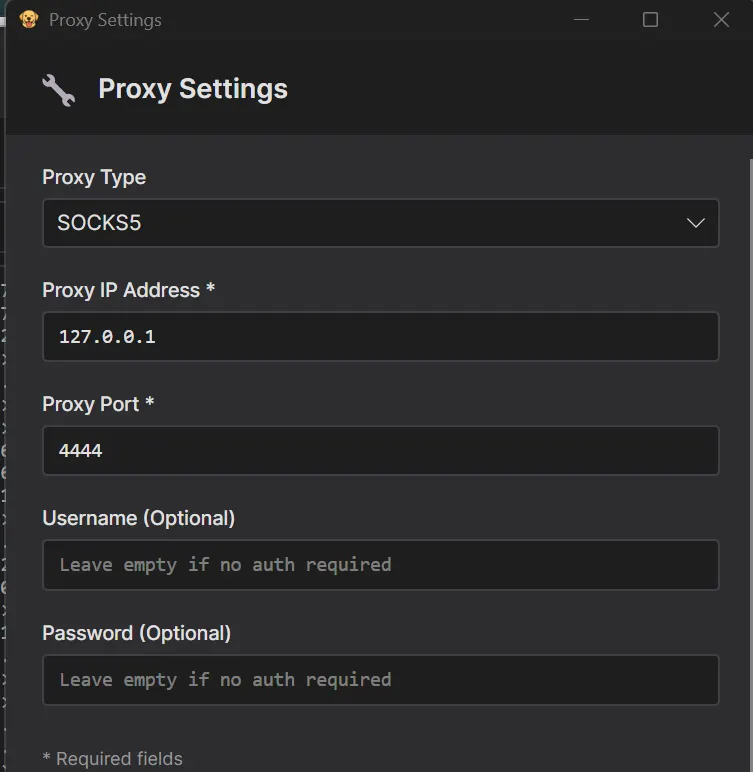
Install and enable ProxyBridge first if you haven't already, see the ProxyBridge installation guide. Then point ProxyBridge at the InterceptSuite listener:
- Open ProxyBridge and click the Proxy tab in the main window.
- Click Proxy Settings from the menu.
- Set Proxy Type to
SOCKS5. - Set Proxy Host to
127.0.0.1and Proxy Port to4444. - Click Save Changes.
Step 3 - Add Proxy Rules in ProxyBridge
You need two rules. The goal is to send all LDAP traffic from every application through the proxy, while making InterceptSuite's own outbound connections go direct, otherwise InterceptSuite would try to proxy through itself, creating an infinite loop.
Open ProxyBridge, click the Proxy tab, then click Proxy Rules.
Rule 1: InterceptSuite goes direct
This prevents InterceptSuite's own connections from being redirected back through itself.
| Field | Value |
|---|---|
| Applications | InterceptSuite.exe |
| Target Hosts | * |
| Target Ports | * |
| Protocol | TCP |
| Action | DIRECT |
Click Save Rule.
Rule 2: All LDAP traffic goes through the proxy
This catches every other application's connections to LDAP ports and routes them to InterceptSuite.
| Field | Value |
|---|---|
| Applications | * |
| Target Hosts | * |
| Target Ports | 389; 636 |
| Protocol | TCP |
| Action | PROXY |
Click Save Rule.
Rule order matters. ProxyBridge evaluates rules top-down and applies the first match. Make sure the InterceptSuite DIRECT rule is listed above the wildcard PROXY rule.
Step 4 - Verify InterceptSuite is Listening
Switch back to InterceptSuite and confirm the proxy listener shows Listening in the Proxy tab. Everything is now in place.
Step 5 - Run the LDAP Client
Run your LDAP client as normal: point it at the real LDAP server IP and port 389. ProxyBridge transparently intercepts the connection before it leaves your machine and routes it through InterceptSuite.
Step 6 - Inspect the Decrypted Traffic in Proxy History
Open the Proxy History tab in InterceptSuite. You will see the LDAP connection listed there. Click on it to expand the session.
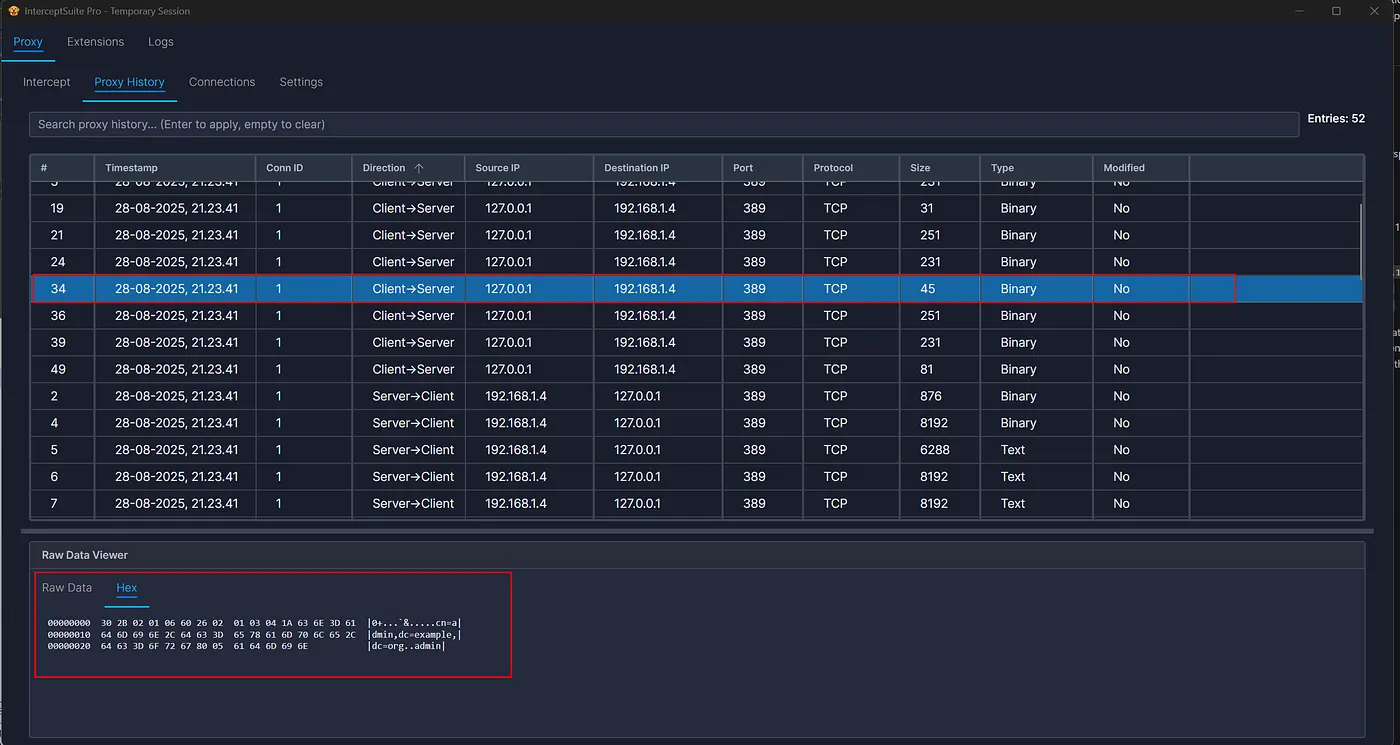
The data shown is the fully decrypted LDAP payload - InterceptSuite has already handled the STARTTLS upgrade and performed the TLS handshake transparently. You can see the plain-text LDAP messages including bind requests, search operations, and responses.
Step 7 - Analyse Further
From Proxy History you have several options:
Python Extension API - write a dissector to parse the binary LDAP message structure and display fields like bindDN, searchBase, filter, and attributes in a readable format. See the Extension API docs for details.
InterceptSuite Licensing
InterceptSuite is a commercial product priced at $300 USD / year. It includes all capabilities:
- TCP, TLS, and plain-text UDP interception
- Universal TLS Upgrade / STARTTLS support
- DTLS interception
- Project Files (save proxy data)
- PCAP file export support
You can purchase a subscription and download InterceptSuite at interceptsuite.com.
Further Reading
- Extension API - write Python dissectors to parse protocol messages.
- Proxy History - navigate and filter intercepted connections.
- ProxyBridge Installation on macOS - route any app through InterceptSuite.